
A cozy place
for your thoughts
Write and organize notes, sheets and a diary in one place. Keep what matters safe with PIN lock and sealing.
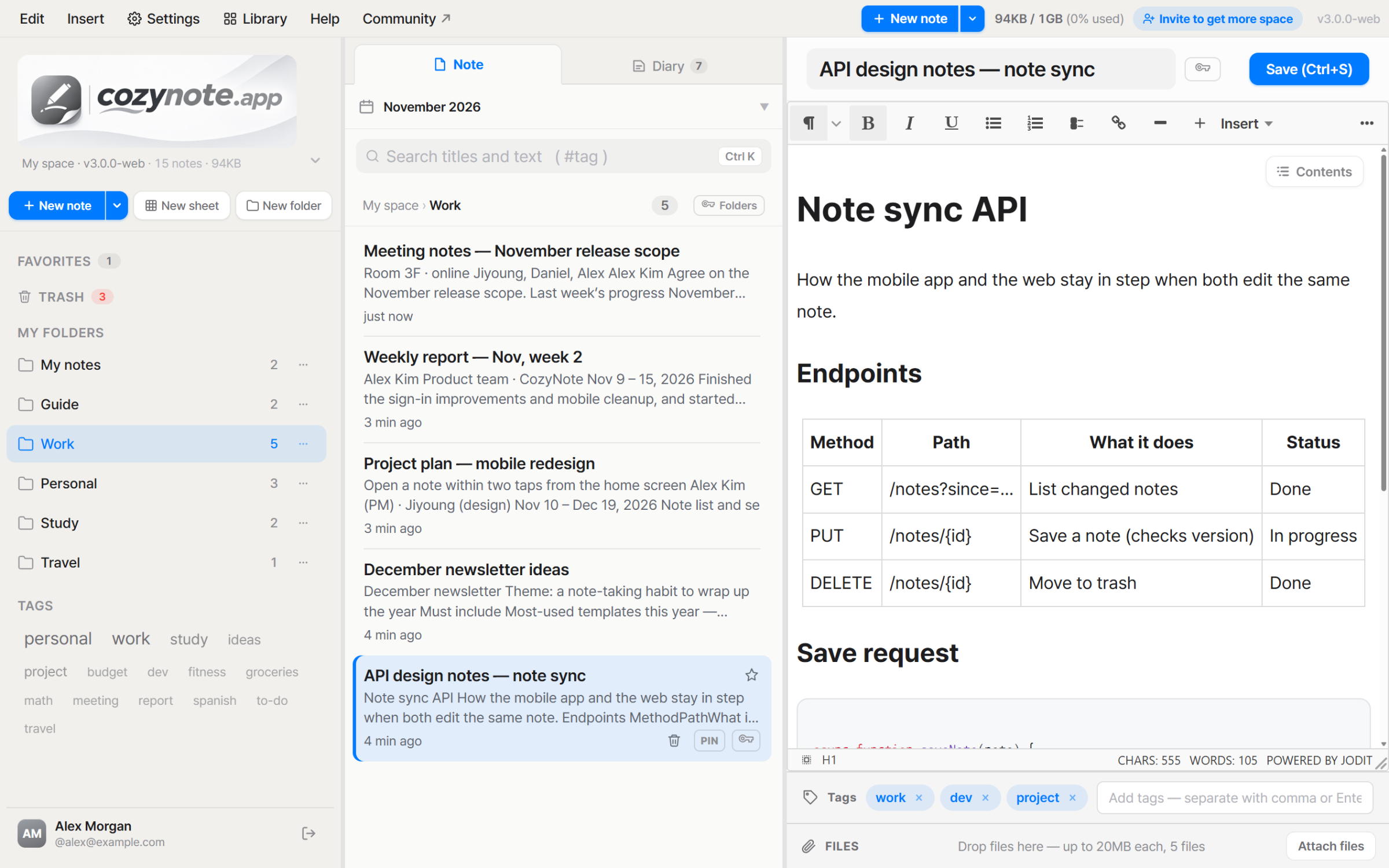
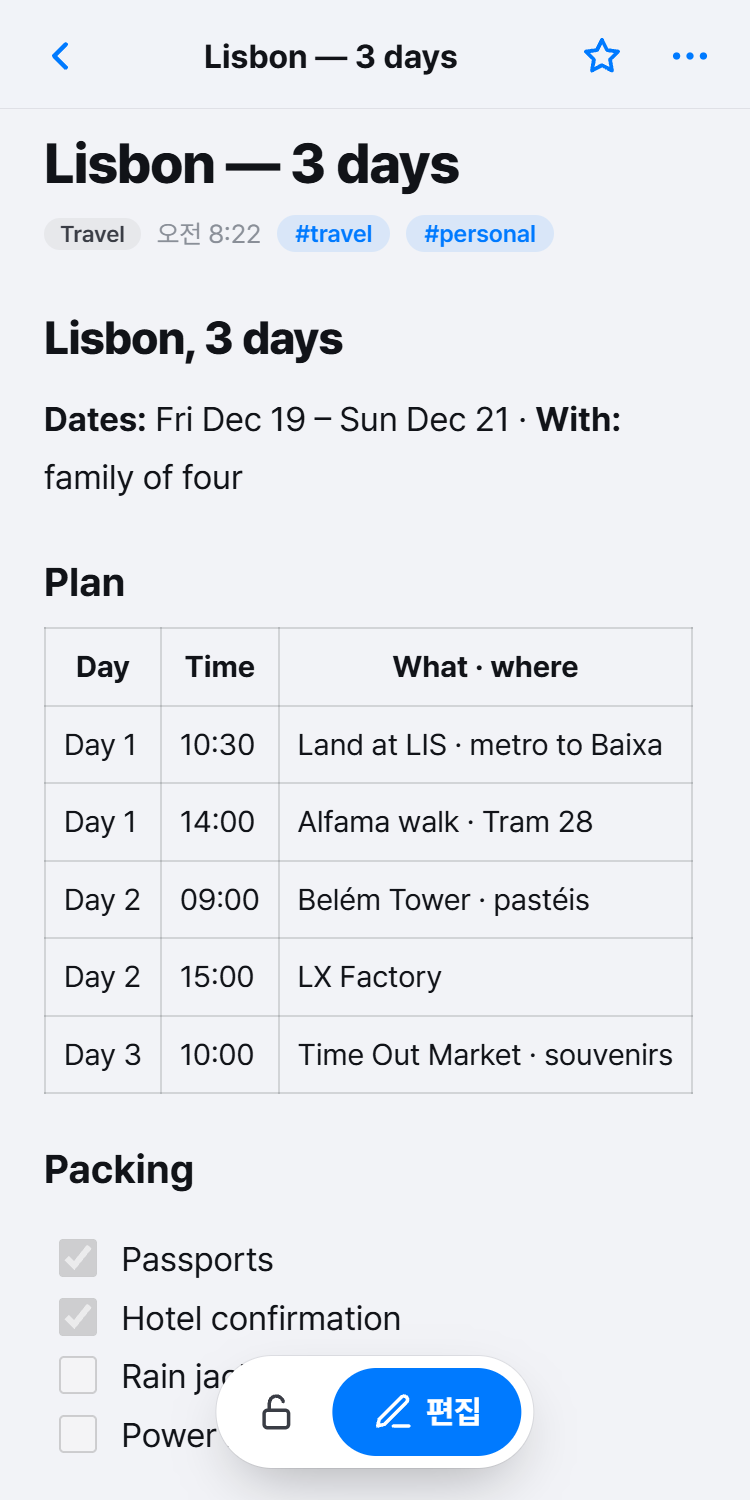
Beautifully simple. Thoughtfully Korean.
An alternative to heavy, complicated note apps you have to learn and set up. Like K-Pop, K-Food and K-Beauty, CozyNote is carefully polished, with nothing extra — open it and start writing, search and find it right away.
Light
Nothing to install and no manual to study. Open your browser and start writing.
Tidy
The features you use most are within reach. Everything else is one Ctrl+K away.
Solid
Light does not mean flimsy. PIN lock and sealing, encrypted in your own browser, keep important writing safe.
The note you need, right there
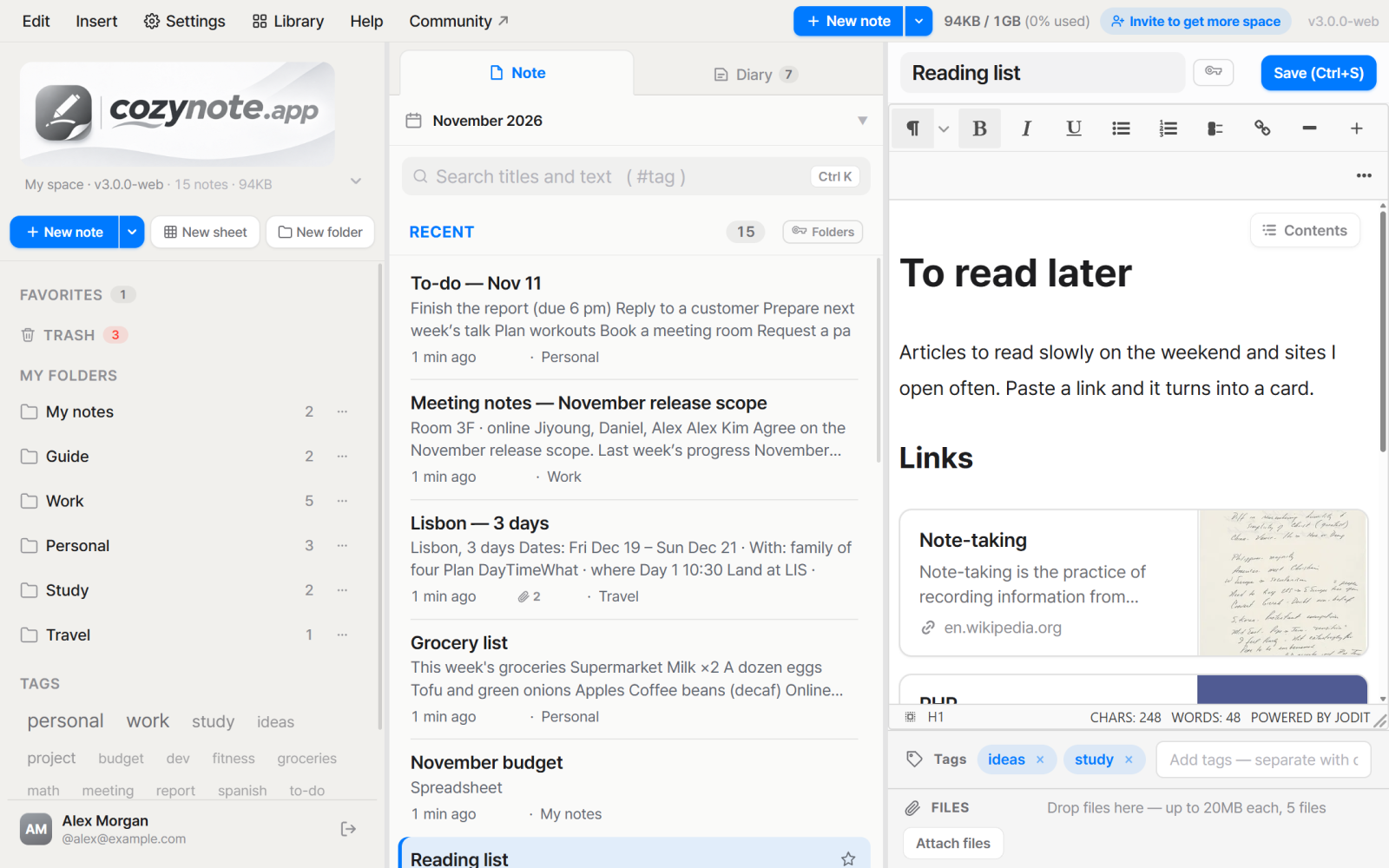
Sort broadly with folders and group across them with tags. Keep favorites close; deleted notes stay in the trash for 30 days. Search covers titles, text and even attached file names — type #tag to gather notes with that tag.
- Folders · tags · favorites · trash (kept 30 days · restore)
- Drag notes to other folders · duplicate them
- A tag cloud where frequent tags look bigger
- Search titles, text, file names — or #tags
- Recently edited first — continue where you left off
Everything you want, in one note
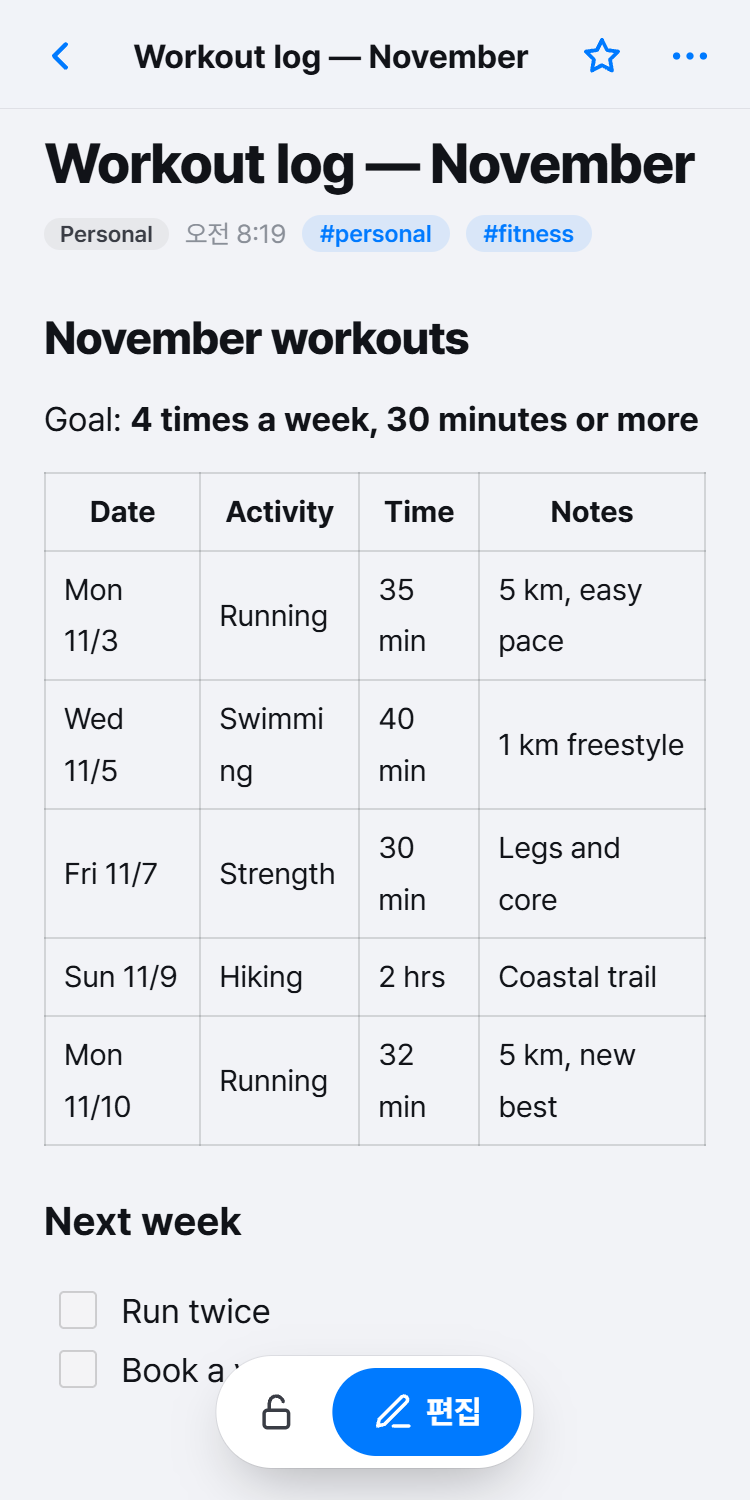
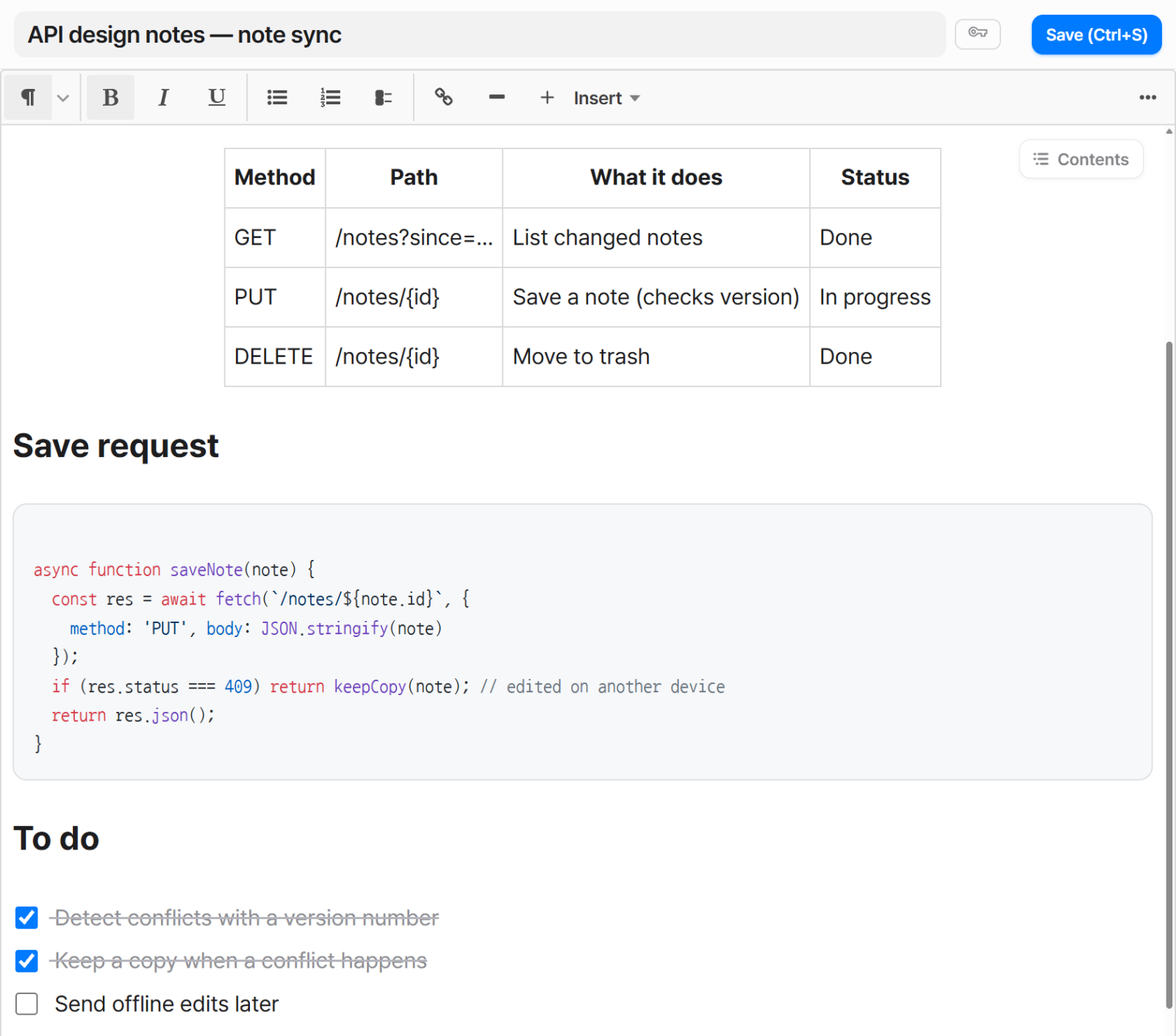
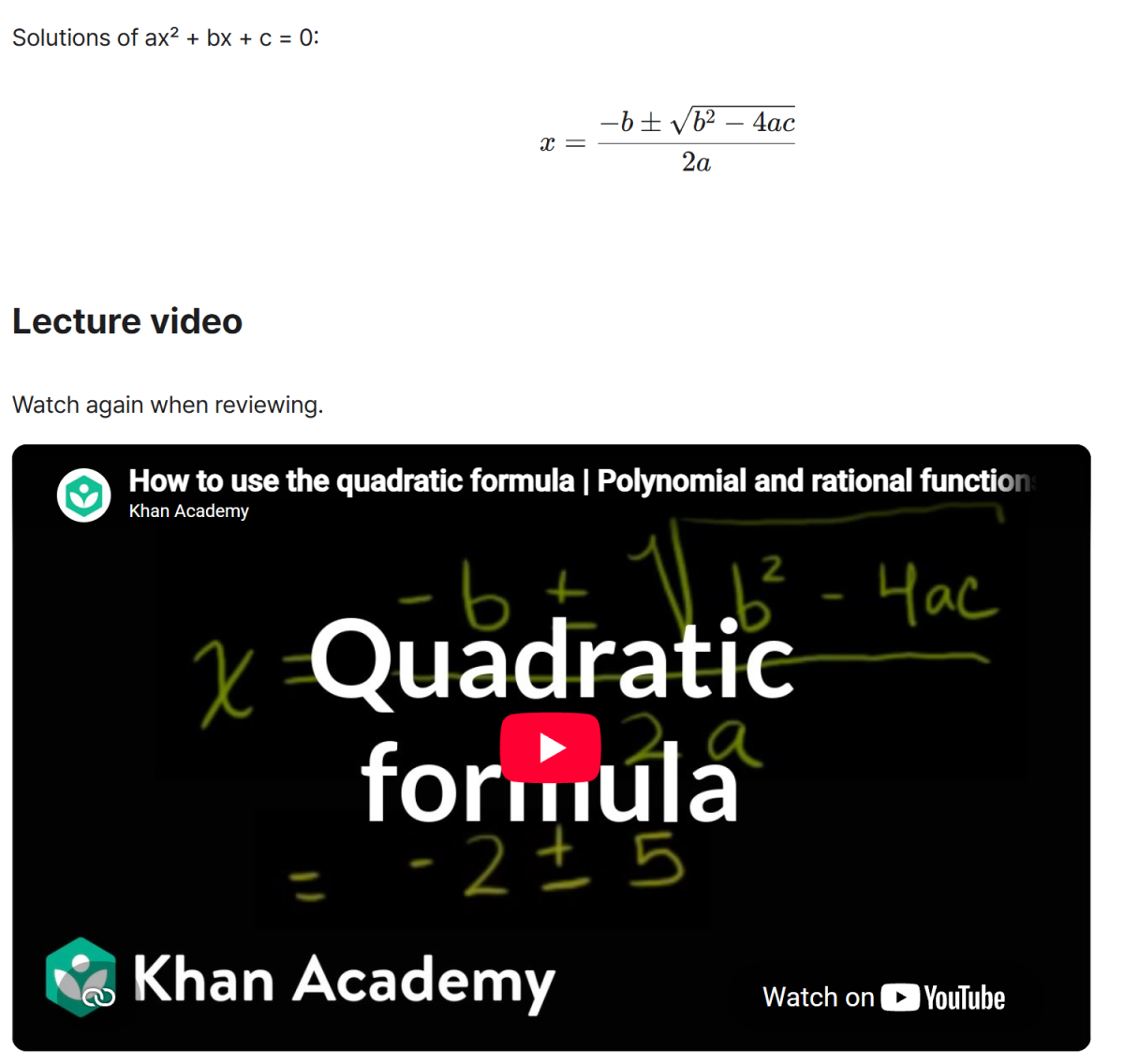
From everyday formatting, tables and checklists to syntax-highlighted code blocks, math, photos and videos — all in one note. Titles fill in from your first line, and pasting a URL turns it into a link card with title, description and image.
- Fonts · sizes · colors · tables · checklists
- Code blocks in 36 languages — highlight · copy
- Math (KaTeX) · photos · YouTube · Vimeo
- Link cards from URLs, links between notes
- Insert date · time (Ctrl+D · Ctrl+T)
Start from a template
Notes you write in the same shape every time — meeting notes, weekly reports, trip plans — can start from a template. Pick one and a new note opens with the title and body already in place. Tag any of your notes #template to make it your own template.
- 10 built-in templates — My day · To-do · Meeting notes · Weekly report · Week plan · Project plan · Study notes · Reading notes · Trip planner · Recipe
- Preview a filled-in example or the blank form before you choose
- Tag your own note #template to turn it into a template
- {{date}} · {{weekday}} · {{time}} become the values of the day you create it
- On the PC web — ▾ next to New note · + Insert in the toolbar · Ctrl+K
Find notes by the day you wrote them
The calendar above your note list puts a dot on every day you wrote notes. Click a date to see only the notes created — or edited — that day. When you think "what did I write in last Tuesday's meeting?", go straight to the date.
- A dot and a count on each day with notes
- Click a date to list just that day's notes
- Choose by created date or by edited date
- Lunar dates · 24 solar terms · holidays by country
- On the PC web — calendar above the note list, fold it away when you don't need it
When you need to calculate, use a sheet
Create spreadsheets right in your note list. Use sheets for budgets, schedules or inventories that need cells and formulas, and organize them with folders and tags just like notes. Text inside sheets is searchable too.
- Formulas · number formats (thousands · currency · percent · decimals)
- Same folders · tags · favorites as notes
- Search text inside cells

One entry a day, in diary mode
Tap the Diary tab next to Notes to switch to diary mode. Pick a date and that day's page opens, with your mood alongside. Look back by mood later, or see at a glance which days have entries.
- One entry a day — days with entries show on the calendar
- Mood tracking and 'view by mood'
- Lunar dates · seasonal terms · KR · US · JP · CN holidays
- Lock the whole diary with a PIN; it re-locks when idle
- Calm sage green · paper-like ruled lines

Everything else steps aside. Just you and the words.
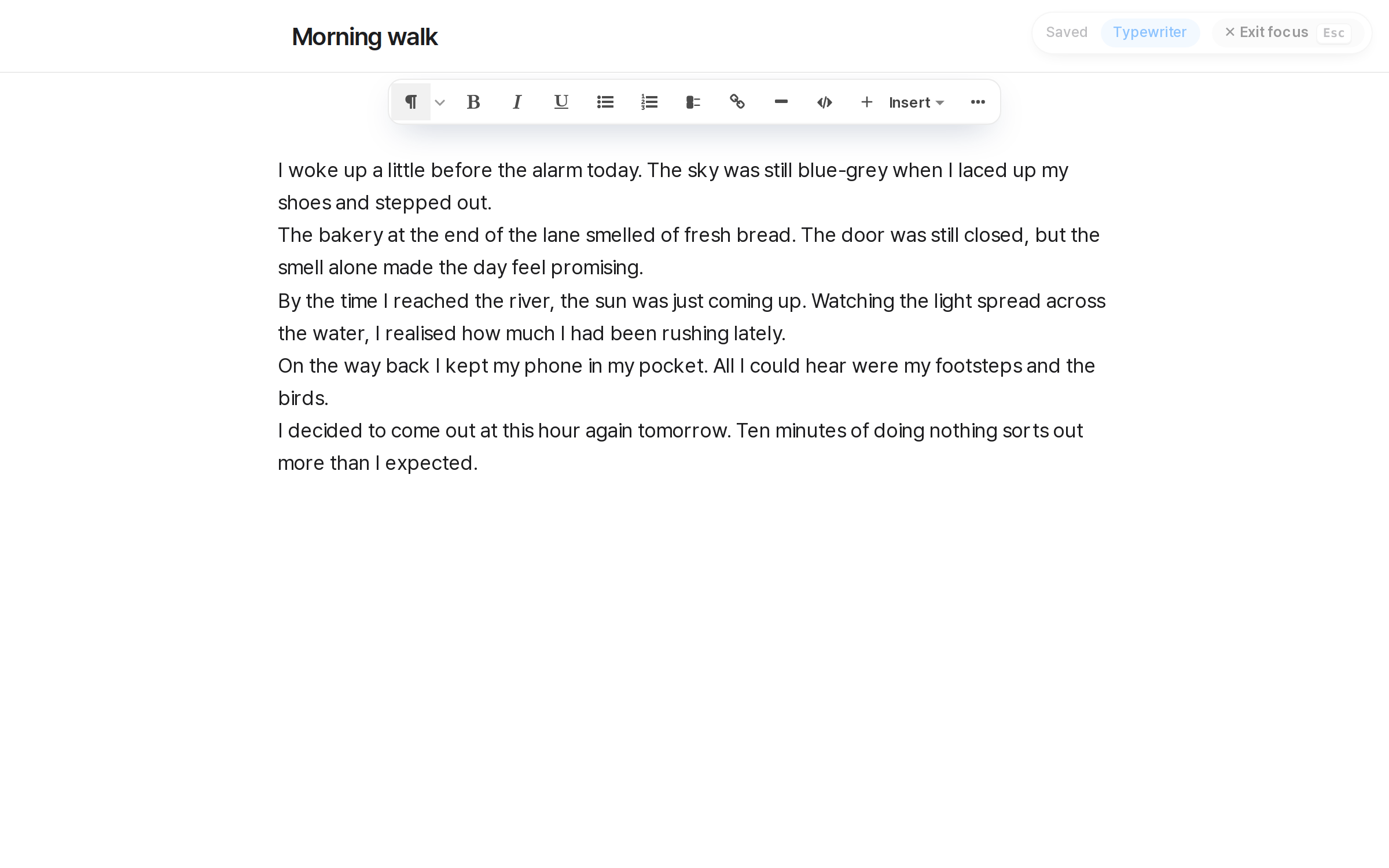
One click and the menus and lists disappear, leaving only your writing and the toolbar. Turn on typewriter scrolling and the line you are writing stays in the middle of the screen, so your eyes never drift to the bottom. Nothing to break your train of thought.
Press [Focus] at the top right of the editor, or Ctrl+Shift+F (⌘+Shift+F on Mac). Works for notes and the diary.
The line you are writing stays centred. Clicking somewhere never moves the page, so you never lose your place.
Press [✕ Exit focus] at the top right, or just Esc. Your save status quietly stays right there.
No install. Right in your browser.
Just type cozynote.app into your phone's browser. A screen made for your phone opens, and you pick up the notes and diary you were writing on your PC. Nothing to download, no updates to wait for.
cozynote.appNo install — that's our core philosophy
CozyNote gets better every day. We believe a new feature should be ready on every device the day it ships — without waiting for app-store reviews or updates. That is why working without an install comes first.
Dedicated Android and iOS apps are on the way. Even after they arrive, every feature of an ever-improving CozyNote will reach the browser first — ready to use right away.
- Always the latest features — no installs, no updates
- The same notes, diary, tags and folders as on your PC
- Opens like an app from a home-screen icon (PWA)
- Drafts stay on your device while you write — cleared once saved
- One-handed — edit and go back from the bar at your thumb
Get started
1Open your browser
Safari, Chrome, Samsung Internet — whatever you already use.
2Type cozynote.app
The phone-friendly screen opens on its own.
3Sign in with the same account
The same notes, diary and tags as on your PC.
4Add to Home Screen
In Safari tap Share ▸ Add to Home Screen; in Chrome open the menu ▸ Add to Home screen. The icon opens it like an app.
Install it like an app (PWA)
Install once and CozyNote opens from an icon on your home screen, desktop or Dock — in its own window, without an address bar. It isn't a separate download; it opens the same cozynote.app, so updates always arrive right away.
On cozynote.app, tap ⋮ at the top right ▸ Add to Home screen (or Install app)
On cozynote.app, tap Share at the bottom ▸ Add to Home Screen ▸ Add
Click the install icon at the right of the address bar, or Help ▸ Install as app in CozyNote
In the menu bar, File ▸ Add to Dock (macOS Sonoma or later)
Removing the app doesn't touch your notes — they stay on the server. Delete it just like any app icon.
Two ways to protect
A note you want to hide is different from a note no one may ever read. CozyNote gives you both.
Locked notes and the diary open only with your PIN. Once unlocked they stay open briefly, then lock again on their own. Ideal for memos you don't want others to glance at.
- Per note · or the whole diary
- Re-locks automatically
- Lists show only the title and a lock

Sealed notes are encrypted in your browser before they are stored. Neither the server nor the operators can read them. Only your vault password and recovery key open them.
- End-to-end encryption (AES-256-GCM)
- Sealed folders — new notes sealed from the start
- Opens only with vault password + recovery key

| PIN lock | Sealing | |
|---|---|---|
| Can the server read it? | Stored, but won't open without the PIN | No — only ciphertext is stored |
| Shows up in search? | Only while unlocked | No |
| Readable via AI connections? | No | No |
| If you forget | Get a temporary PIN by email | Without the recovery key, no one can restore it |
| Best for | Memos and diary you'd rather hide | Passwords, contracts, health — records that must stay private |
Attachments and images in your notes are stored in two places — the CozyNote server and Cloudflare R2 (see 'Data protection' below). In sealed notes they are encrypted in your browser before upload, so neither storage can read them.
Why 12+ characters for the vault password
Theoretical time for a high-end cracking rig with several GPUs to try every possible combination. That is why CozyNote requires a vault password of 12 characters or more.
| Length | Digits only | Lowercase only | Upper + lower | Upper, lower, digits, symbols |
|---|---|---|---|---|
| 6 chars | 8.3 seconds | 42.9 minutes | 1.9 days | 66.5 days |
| 8 chars | 13.9 minutes | 20.1 days | 14.1 years | 1.6 thousand years |
| 10 chars | 23.1 hours | 37.3 years | 38.2 thousand years | 14.2 million years |
| 12 chars | 96.5 days | 25.2 thousand years | 103 million years | 126 billion years |
| 14 chars | 26.4 years | 17 million years | 279 billion years | Practically never |
- Basis: eight RTX 4090 GPUs computing PBKDF2-SHA256 with 600,000 iterations — about 120,000 guesses per second. Time to try every combination; on average it is half.
- CozyNote deliberately runs 600,000 rounds to check a vault password, making the same hardware hundreds of thousands of times slower.
- Common passwords — words, birthdays, keyboard patterns — fall far faster than this table. We recommend a long phrase of several words.
Why is CozyNote sealing safer?
Many note services encrypt your notes on their servers and keep the keys there too — so a leaked server key or an insider could read them. CozyNote sealing encrypts in your browser first, and the keys never live on the server.

- Encrypted in your browser firstNotes are encrypted with AES-256-GCM in your browser before they reach the server. Only ciphertext is stored.
- The keys never reach the serverYour vault password, recovery key and master key are never sent. The server only holds wrapped (encrypted) keys, so even the operator cannot open them.
- A separate key for every note and imageEach note and image gets its own random key, which is wrapped again with your master key. The server only ever sees wrapped keys.
- Images, attachments, even file namesNot just the body — the list preview, images in the note, and attachments' contents, names and types are encrypted too.
- Tampering is caughtAuthenticated encryption (GCM) and a unique tag on every file mean that if anyone alters content or swaps files on the server, it simply won't open.
- Not the operator, AI or searchThe admin screen can't open sealed notes, AI connections never receive them, and the search index keeps only titles.
- A vault password that's hard to crackVault passwords are 12+ characters and every check runs PBKDF2 600,000 times, making guess-by-guess attacks extremely slow.
- No path for plain text to leakThe vault locks after 30 idle minutes or when you close the tab, and the server and database refuse any attempt to save plain text into a sealed note.

Note titles, tags, folder names, created/edited times and sizes are not sealed — so you can recognize notes in the list. Use titles that are fine to be seen.
If you lose both your vault password and recovery key, no one — not even the operator — can recover your sealed notes.
Never lose what you were writing
Choose an autosave interval from 10 seconds to 2 minutes, and see the time left until the next save next to the title. If your connection drops, what you wrote stays in your browser and is sent when you're back. If the same note was edited elsewhere first, nothing is overwritten — a copy is kept.
- Autosave every 10 s – 2 min · 'editing · saving in 15s'
- Offline drafts kept in the browser → sent automatically
- Conflict copies instead of overwriting
- Ask (or just save) when moving to another note

So you never lose your work — two copies, every day
What you write is yours. Here is what CozyNote does to keep your data safe for the long run.
 R2

Images and attachments in your notes are stored in two places: the CozyNote server and Cloudflare R2 (Asia-Pacific). New files are copied to R2 within a minute, and every hour we check that nothing is missing. If one side has a problem, the other still has your files.
Every night the whole database — notes, sheets, diary and settings — is backed up to storage outside the server (Cloudflare R2). Backups are locked for 60 days so no one can delete or change them; even an operator mistake or a break-in cannot erase past backups.
Backup files are encrypted before they are uploaded. The key to open them is kept separately, not on the server, so even a leaked backup file cannot be read.
Deleted notes can be restored from the trash for 30 days, and version history automatically keeps the state before a restore, an AI edit, a change from another device or a large deletion. You can also download all your notes as files at any time.
* Deleted data can remain in backups for up to 65 days before it is removed automatically. Sealed notes stay sealed (encrypted) inside backups too.
Cloudflare and the Cloudflare logo are trademarks of Cloudflare, Inc.
Let AI work with your notes
Connect an AI app such as ChatGPT or Claude to CozyNote to find, read and organize notes in conversation. Only connections you allow can create, append and edit notes.
- "Get the list of notes created this week, put it in a table, and save it as a note too"
- "Turn today's tasks into a checklist"
- Create a connection in settings — disconnect any time
* In ChatGPT, type @CozyNote and choose the plugin.
CozyNote has no built-in AI. On purpose.
Many services now ship handy AI features. But notes hold private and important things — schedules, contacts, work records, a diary. So instead of handing your notes to an AI the service picked, CozyNote recommends connecting the AI agent you already use, directly, through MCP.
- Your notes may be sent to an outside AI company the service has a contract with — and you rarely get to choose which one, or on what terms.
- Depending on the service's or the AI company's terms, the content may be stored or even used to train AI.
- Some services analyse all of your notes in advance to power the feature.
- CozyNote's servers never send your notes to any AI company. There is no AI feature to send them to.
- You connect the AI you already use (ChatGPT, Claude…) with your own account — and decide about training in that account's settings.
- The AI reads a note only when you ask it to in a conversation — just the notes it needs.
- Allow read-only access or disconnect any time. Sealed and PIN-locked notes are never handed to the AI.
Notes you send to a connected AI are handled under that AI company's policies — check your AI's data settings (such as training use) once. If a note must never be seen by AI, seal it.
Enter the address, sign in to CozyNote — done
Apps such as ChatGPT and Claude connect once you enter the connection address, sign in to CozyNote and allow access. No token to paste.
https://cozynote.app/mcp
-

1Enter the address
In your AI app’s connector settings, create a new connection and enter https://cozynote.app/mcp. The menus for each app are below.
-

2Sign in to CozyNote
The app opens the CozyNote sign-in page. Sign in as usual with email, Google or Kakao. If you’re already signed in, it goes straight to the next step.
-

3Allow access
Check which app it is and where you’ll return after allowing, then click “Allow”. Tick “Also allow writing” if the AI may create and edit notes.
Setup by app
ChatGPT (web)
- Click
Pluginsin ChatGPT’s left sidebar (https://chatgpt.com/plugins), then chooseAdd▸Add custom MCP serverat the top right. - Set
NametoCozyNote. UnderConnection, keepServer URLselected and enterhttps://cozynote.app/mcp. - For
Authentication, chooseOAuth. You can leaveAdvanced OAuth settingsas they are. - Read the warning, tick
I understand and want to continue, then clickCreate as a plugin. - When the sign-in and allow page opens, decide whether to allow writing, then click
Allow.
This menu is only on ChatGPT for the web, and depending on your plan or workspace settings it may be unavailable or read-only. ChatGPT renames its menus often — look for “Add custom MCP server” even if the wording differs a little.
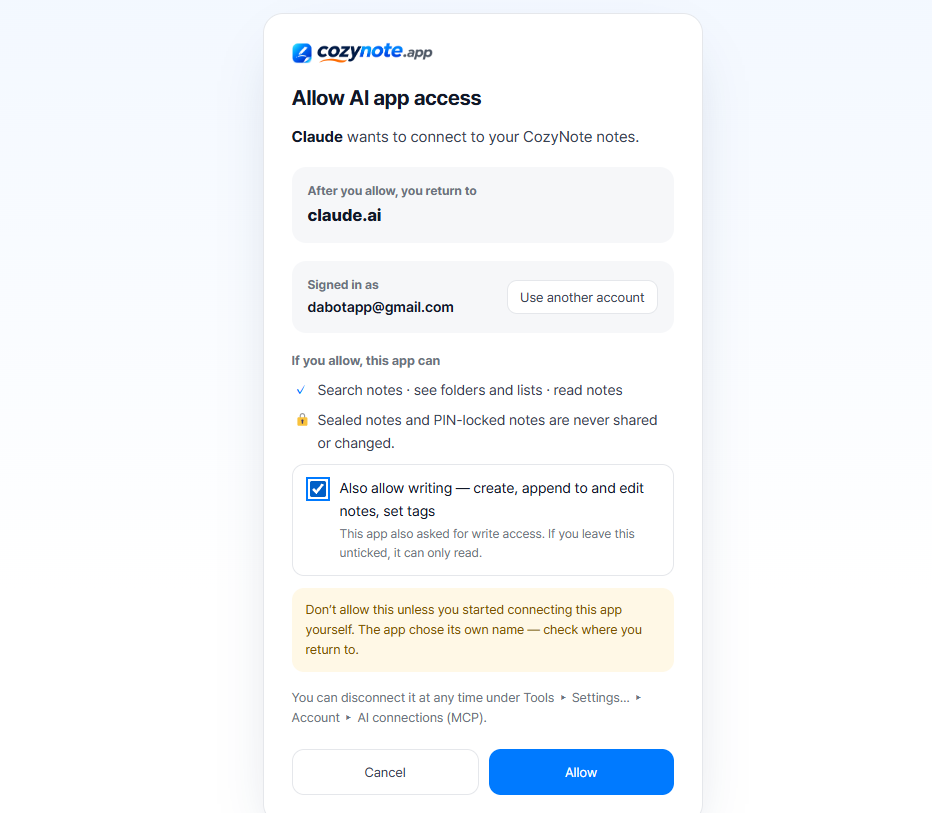
* The allow page shown here was captured from a claude.ai connection.
Claude (web · desktop · mobile)
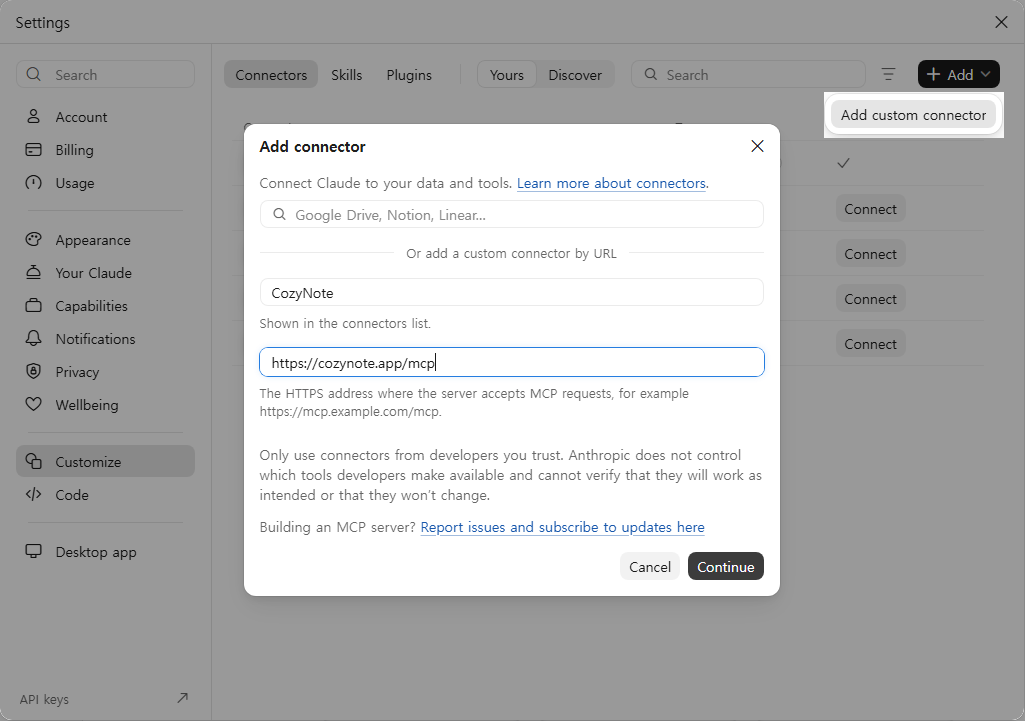
- In Claude, go to
Settings▸Customize▸Connectors, then click+ Add▸Add custom connectorat the top right. - In the
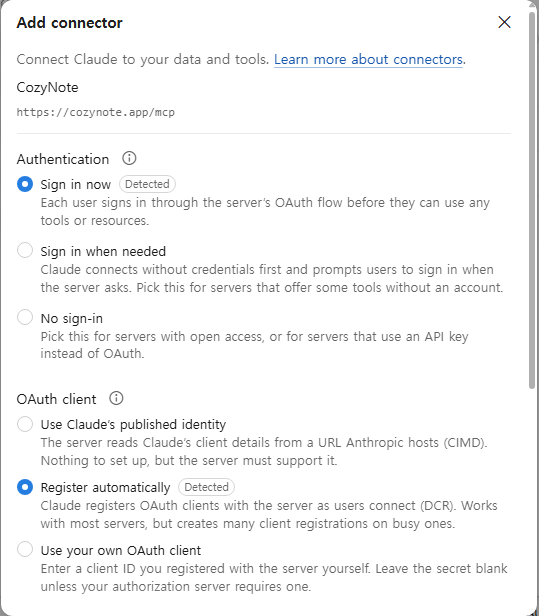
Add connectorbox, name itCozyNote, enterhttps://cozynote.app/mcpas the URL and clickContinue. - On the next screen, Authentication is already set to
Sign in nowand OAuth client toRegister automatically(Detected). Leave them as they are and clickAddat the bottom. - Click
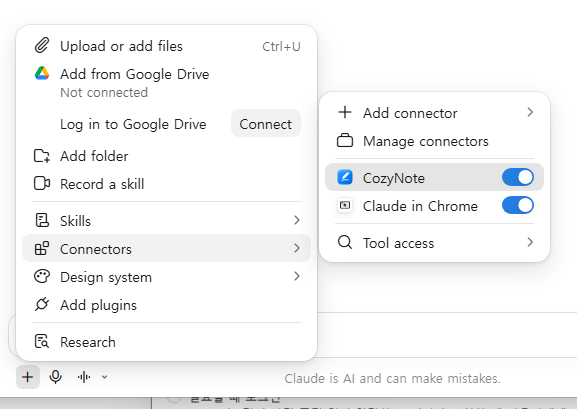
Connectnext to CozyNote in the connector list and the CozyNote sign-in and allow page opens. Check the account (if it’s the wrong one, clickUse another account), tickAlso allow writingif you want the AI to create and edit notes, then clickAllow. - Once connected, CozyNote is turned on automatically. To check, open
+▸Connectorsat the bottom left of the chat box — the CozyNote switch should be on (if it’s off, just turn it on).
The Free plan can add one custom connector. Menu names and places may differ slightly between the web and desktop apps.
Claude Code
Add it with the command below in a terminal. --scope user makes it available in every project.
claude mcp add --transport http cozynote https://cozynote.app/mcp --scope userThen open /mcp inside Claude Code, pick cozynote and sign in (Authenticate) — the CozyNote allow page opens in your browser. Check the connection with claude mcp list.
Other apps (Cursor · VS Code · Codex · Gemini CLI, etc.)
Apps that support sign-in connections (OAuth) open the CozyNote sign-in page once you enter the address. For other apps, put a token in a header instead — create one on a computer under Tools ▸ Settings… ▸ AI connections with “New connection” (it is shown only once). In a JSON config file it looks like this. The outer key (mcpServers or servers) and the file location depend on the app.
{
  "mcpServers": {
    "cozynote": {
      "type": "http",
      "url": "https://cozynote.app/mcp",
      "headers": {
        "Authorization": "Bearer <token>"
      }
    }
  }
}Easy on the eyes, in your language
Choose light or dark, or let CozyNote follow your device setting — then it turns dark whenever your PC or phone switches to dark mode. Dark mode uses a calm charcoal instead of pure black, with text toned down so it doesn’t glare. Switch between 한국어 · English · 日本語 any time — it starts with your browser's language.
- Light · dark · follow your device
- 한국어 · English · 日本語
- On PC and phone
Advanced features
Small things you'll be glad of every day.
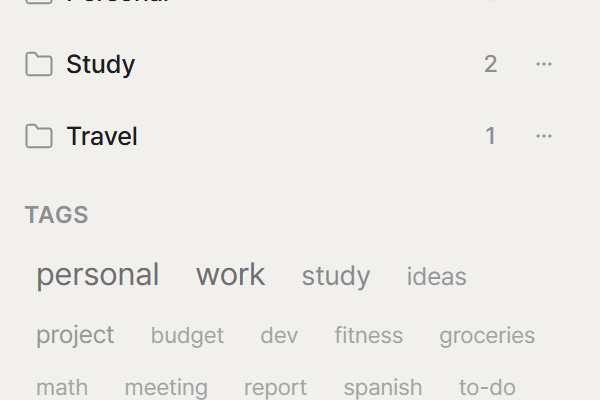
Tag cloud
Your most-used tags, bigger — see what you write about at a glance.
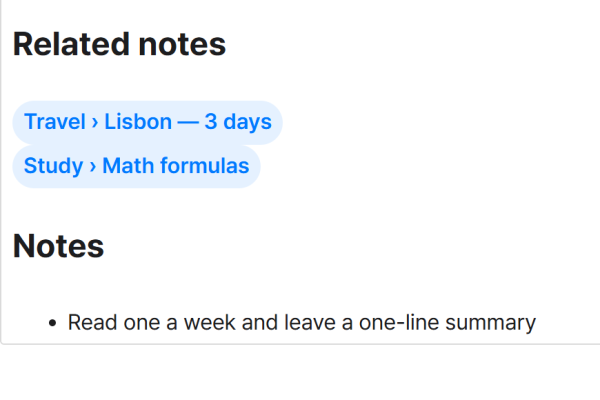
Note links
Link one note to another, with a way back.
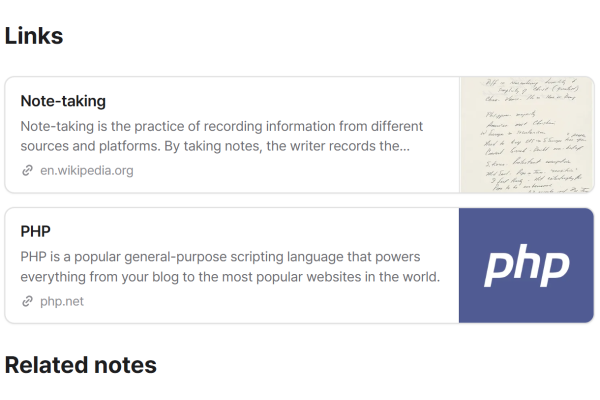
Link cards
Paste a URL to get a card with title, description and image.
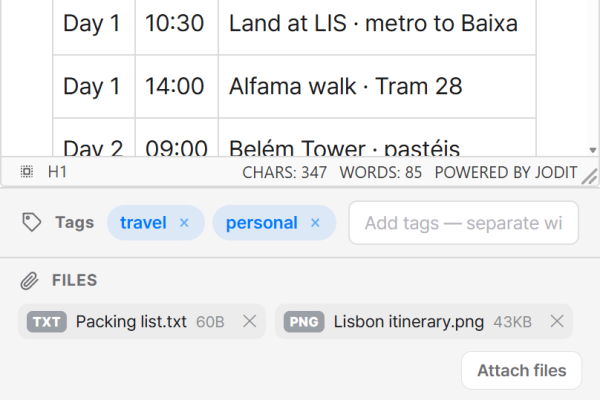
Attachments
Drop a file on a note to attach it — and add a link in the text if you like.
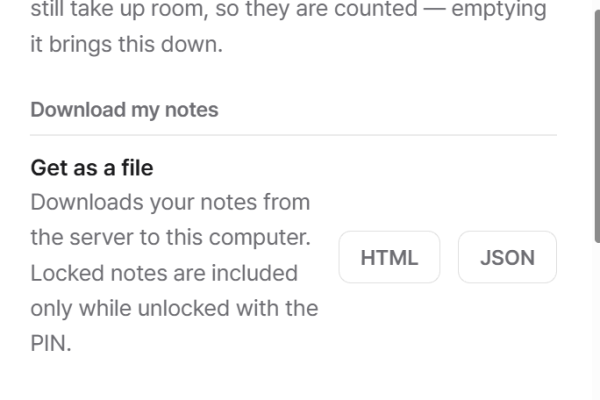
Export
Download your notes as HTML or JSON any time.
* We’re improving this feature. Coming soon.
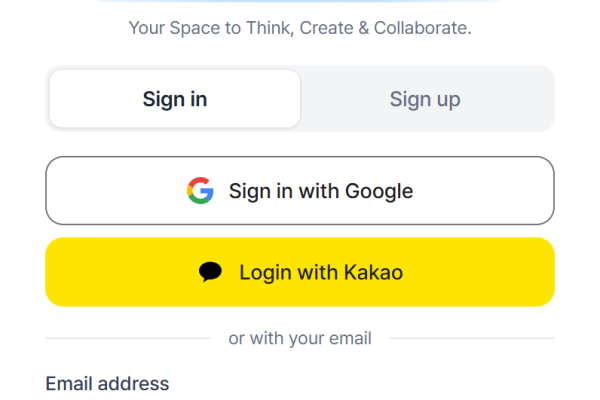
Google · Kakao sign-in
Start with the account you already have — or sign up with email.
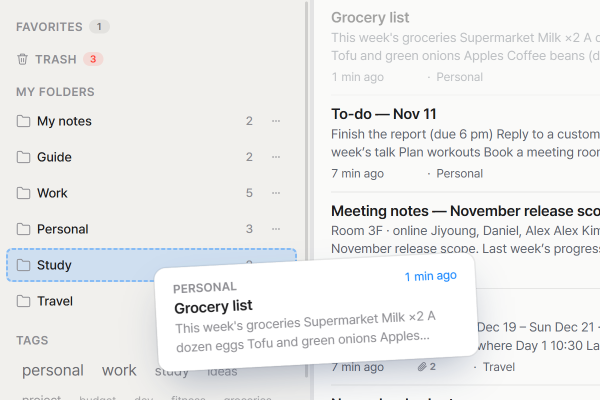
Drag · duplicate
Drag notes into other folders, or duplicate one to start from.
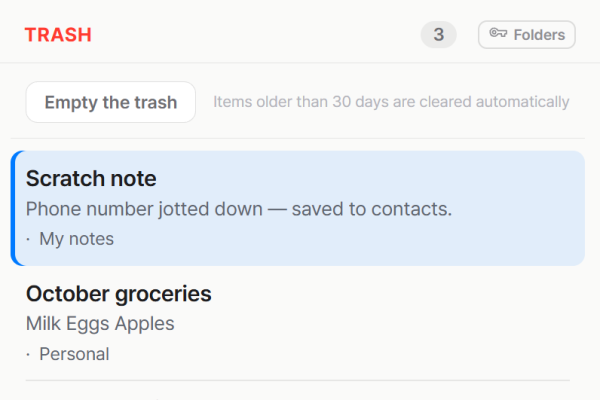
30-day trash
Deleted notes stay in the trash for 30 days, ready to restore.
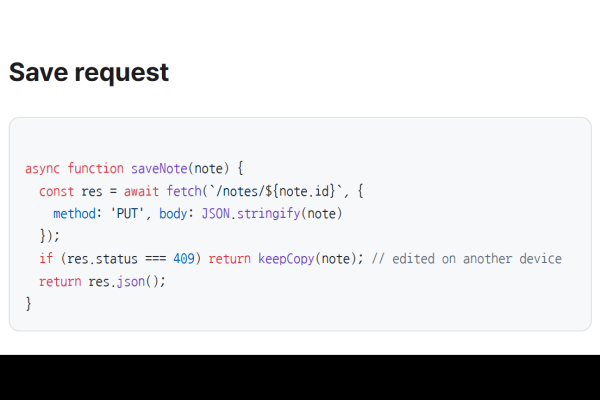
Code blocks
36 languages, highlighted, with one-click copy.
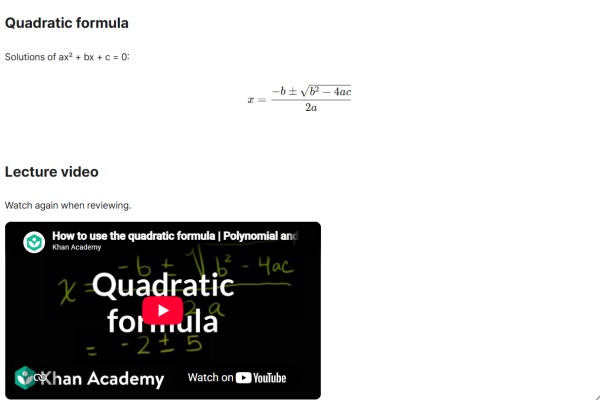
Math · video
Write KaTeX math and play YouTube · Vimeo right in the note.
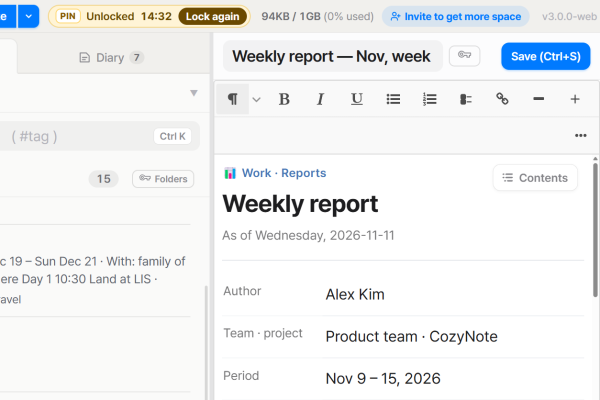
PIN opens briefly
Unlocked notes stay open for 15 minutes, with a timer and 'lock again' at the top.
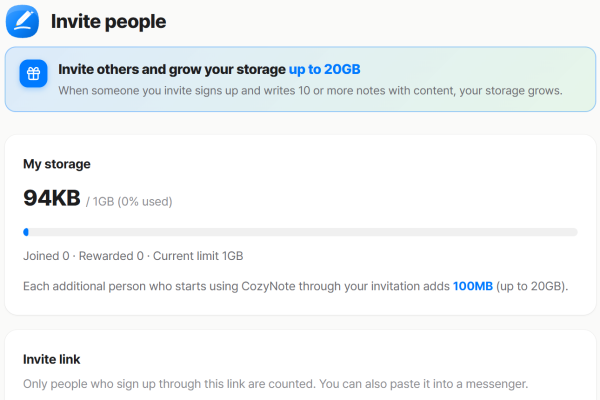
Invite friends
Invite friends to CozyNote and your storage grows too.
Core features, free
Notes, sheets, diary, PIN lock, encryption and AI connections — every core feature is free. Invite friends to grow your storage.
Free
- 1GB storage to start
- +100MB for every friend you invite (up to 20GB)
- Attachments up to 20MB each · 5 per note
- Notes · sheets · diary · PIN lock · sealing · AI connections included
Paid plans
We're preparing plans that give you more storage and extra features on top.
- More storage
- Extra features available on paid plans
- Everything you use for free stays free
Start keeping your thoughts in CozyNote
Signing up takes a minute. Nothing to install.